 Content / Perspective
Build Trust on Your Website Before the First Conversation
Help Malaysian customers verify your business identity, assess relevant work and understand what happens after an enquiry.
Read the article
Organise website project photos with a clear cover, useful detail shots, concise captions and language-specific alt text.
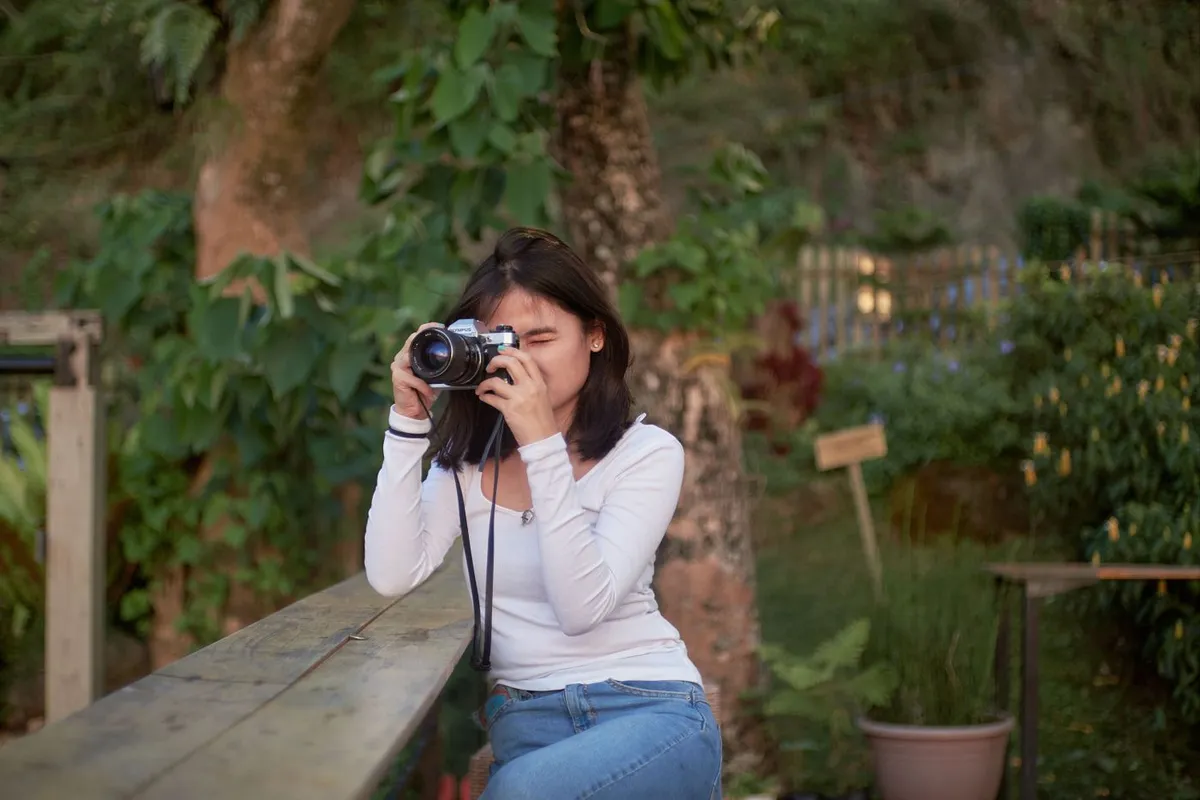
When a client sends you twenty photos from a completed job, choose one that makes the work recognisable in a small thumbnail. Look for a clear subject, enough space around it for a mobile crop, and a view that represents what your team actually delivered. Put the other useful angles inside the same project entry so the portfolio stays easy to scan.
A hypothetical café signage project might lead with the completed shopfront. A second photo can show how the lettering reads from the pavement, and a close-up can show the finish. Three photos with different jobs tell a clearer story than three near-identical views from the doorway.

Begin with the result, then show details that answer questions a prospective customer might ask. For a custom display stand, that could mean the whole stand, the shelves in use and a close-up of the joining detail. Keep process photos together if they explain a decision or constraint. Label a rendering as a rendering and use comparable viewpoints when showing before and after.
Give each project a consistent short name, service category and public location where appropriate. Use the town or neighbourhood if that gives enough context. Check permission and look for addresses, faces or paperwork in the background before posting. Keep originals separately and export smaller web copies. On your phone, check whether the crop still shows the part of the work that matters.

A caption can tell readers why a photo is included. For the sample café project, “The projecting sign helps people spot the entrance from either direction” explains the design choice. Alt text describes the relevant visual information, for example “Rectangular café sign projecting above the shop entrance.” Write the equivalent in each page language and check it against the final crop.
In a gallery of related photos, give each informative photo a description that helps distinguish it from the others. Avoid repeating the project name and town in every description. See W3C guidance on groups of images.
On Mix Web sites that use the project catalogue, open Project Manager and select the relevant client project before updating its image fields. Use the previews and controls available for that record, then apply the changes and save and publish. For an image placed directly on an ordinary page, follow the Mix Site Editor guide to replacing page images. If your layout only shows a single project image, agree how additional photos should be displayed before preparing a large batch.

Open the public portfolio on a phone and tap through from the project card. Check whether the lead photo is legible at card size, each extra photo adds something, and the visitor can tell which service the work belongs to. Test both language versions where available. If you are adding shots to work already on the site, update the existing project entry so people who have its link can find the new photos there.
Content / PerspectiveHelp Malaysian customers verify your business identity, assess relevant work and understand what happens after an enquiry.
Read the article Content / Perspective
Review contact details, services, dated promises, photographs and both languages, then separate content corrections from technical work.
Read the article Content / Perspective
Choose where service information belongs, make downloads useful and keep your website and PDF brochure from contradicting each other.
Read the article